Enterprise CRM · Guided integration
One guided setup flow to connect a CRM to 18 different business platforms.
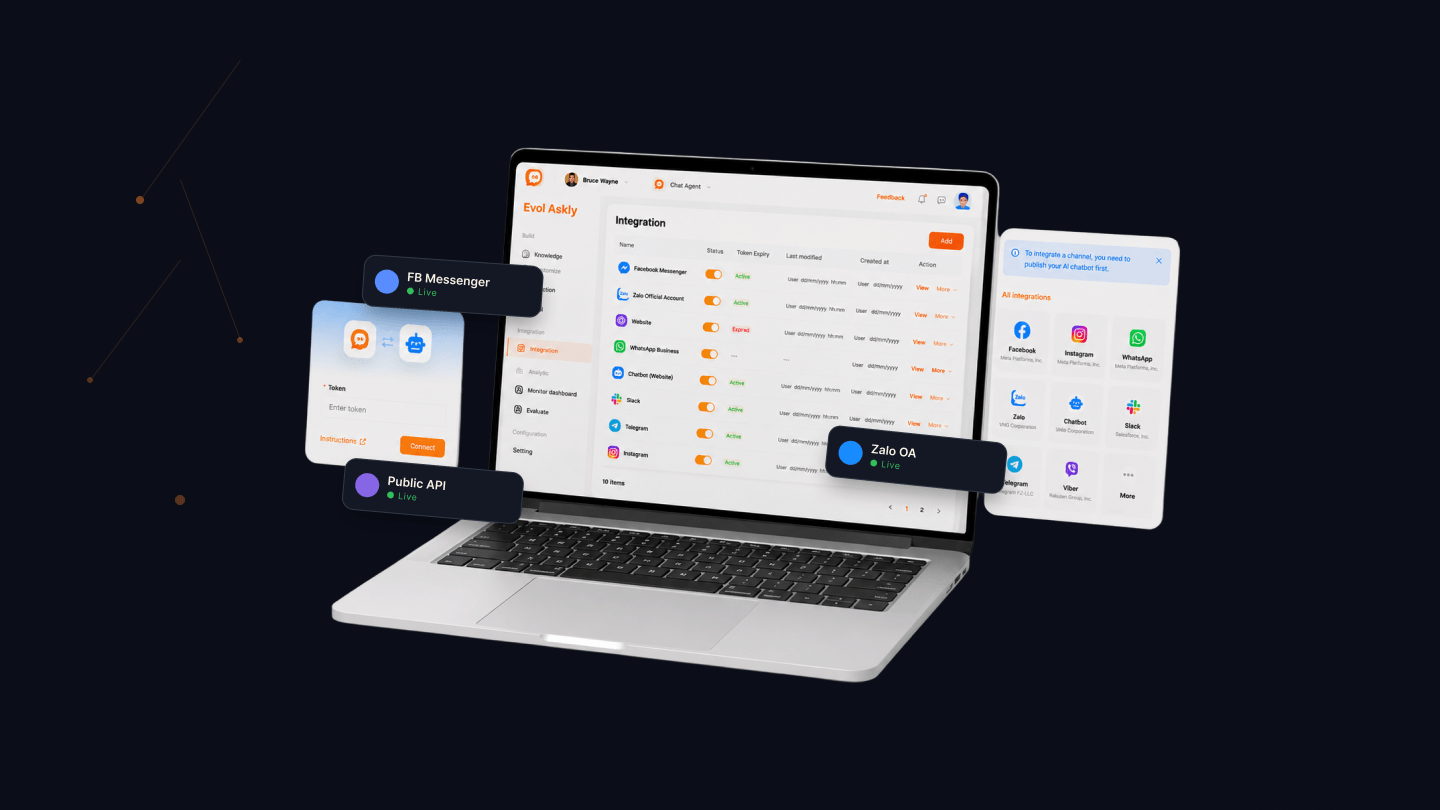
Integration module inside an enterprise CRM — letting non-technical administrators connect 18 external platforms across four categories (Social Platform, Communication, Website, External System) through a single consistent setup experience.
ROLE
Sole UX/UI Designer
PLATFORMS
18 · 4 categories
PATTERNS
Guided setup · Consistent flow
OUTPUT
Flows, UI, design specs
Project overview
About the feature
The Integration module is the surface where CRM administrators connect the CRM to 18 external business platforms — from social messaging to communication tools, websites, and marketplaces — through one consistent setup experience. It handles authentication, permission setup, webhook configuration, data sync, and message routing behind a UI a non-technical admin can actually use.
The 18 platforms span four categories — Social Platform (Facebook Messenger, Instagram, TikTok…), Communication (WhatsApp, Zalo OA, Telegram, Slack, Viber…), Website (Shopify, Magento, WordPress, Framer, Website Widget…), and External System (Shopee, Lazada, and other business systems). Every platform has different authentication and configuration requirements, but the UX presents one guided setup flow so administrators don't have to learn each platform's technical model.
Note on scope: the wider CRM product uses AI for chatbot conversations. This case study focuses on the integration setup workflow — how administrators connect the CRM to external platforms — not on AI model design or conversational UX.
PRODUCT
Enterprise CRM — Integration module
ROLE
Sole UX/UI — research, UX, UI, dev handoff
SCOPE
End-to-end — flow, wireframes, UI, design system, handoff
PLATFORMS
18 platforms — Social · Communication · Website · External System
KEY PATTERNS
Guided setup · Platform categorization · Consistent flow
The problem
Non-technical administrators needed a simple way to connect many different business platforms.
Each of the 18 platforms had its own setup process. Technical concepts like API credentials, webhook configuration, and authentication created friction for administrators without engineering backgrounds. Without guidance, integrations were difficult to configure, troubleshoot, and maintain.
FOR THE USER
CRM administrators
A different setup process for every platform. Unfamiliar technical terminology. No easy way to know whether an integration is working correctly.
FOR SUPPORT
Support team
Frequent tickets caused by incorrect configuration. Difficult to identify configuration mistakes remotely. Manual troubleshooting eating into support capacity.
FOR DEV
Engineering
Every platform uses different APIs and authentication models. Needed a scalable integration experience that could grow with new platforms without re-designing each one.
User roles
Five roles, one integration surface.
The Integration module isn't used by one persona — it's used by different people at different points in the integration's lifecycle. Understanding what each role owns, needs, and worries about is what turned "design a settings page" into design an enterprise integration workflow.
CRM Admin
- NEEDS
- A predictable way to add, edit, and disable integrations without asking engineering.
- OWNS
- Which platforms are connected and how they're configured.
- CARES ABOUT
- Setup speed, connection status, minimal technical jargon.
Customer Support Manager
- NEEDS
- Visibility into which channels are receiving customer conversations right now.
- OWNS
- Support-team access to conversations, agent routing rules.
- CARES ABOUT
- Live channels, message flow, escalation to specific inboxes.
Operations Admin
- NEEDS
- Ability to configure permission tiers, monitor integration health, and respond to failures.
- OWNS
- Role-based access control, operational monitoring.
- CARES ABOUT
- Who can connect what, failed connections, sync errors, audit trail.
Business Owner
- NEEDS
- A high-level view that the platforms customers use are actually connected and working.
- OWNS
- Business decisions about which platforms matter.
- CARES ABOUT
- Coverage across categories, uptime, cost of unavailable channels.
Internal setup / technical support
- NEEDS
- A way to help admins finish setup when a platform's requirements don't match the default flow.
- OWNS
- First-line integration support, custom platform mappings.
- CARES ABOUT
- Reproducible setup, useful error messages, actionable diagnostic info.
Compliance & security
- NEEDS
- Assurance that credentials are stored securely and access is scoped correctly.
- OWNS
- Platform-level security posture.
- CARES ABOUT
- Token expiry, permission scope, revocation, event auditability.
Integration constraints
The technical realities every platform brings to the table.
Each of the 18 platforms has its own way of authenticating, permissioning, and delivering events. The UX has to sit on top of that variance without leaking it to the admin — while still handling the reality that tokens expire, permissions change, and connections drop.
Platform authentication
OAuth 2.0 for most, API-key for some, custom SSO for a few. The setup flow adapts per platform without exposing the mechanism to the admin.
Access permissions
Different platforms require different scopes. The UI shows what will be requested before the OAuth prompt so admins can approve or escalate to their operations team.
API keys & tokens
Some platforms return long-lived tokens, others rotate them. The design has to store, refresh, and surface expiry without asking the admin to touch the values.
Webhook setup
Each integration generates a Webhook URL the third-party platform posts events to. Copy-ready, versioned, and revokable — the admin can regenerate if the URL leaks.
Channel mapping
Which platform channel maps to which CRM inbox, agent group, or automation. Mapping happens after auth, before test, so mistakes are visible before the integration goes live.
Data synchronization
Contacts, conversations, and events flow both ways per platform's rules. The UI names what will sync and what won't, so admins don't discover the boundary in production.
Message routing rules
Where an inbound message ends up — which agent, which queue, which automation. Rules are shared across integrations so admins learn once.
Expired token handling
When a token expires or is revoked, the integration transitions to Reconnect Required. The admin gets a one-tap path to re-authorize without redoing configuration.
Failed connection recovery
Failures are named specifically — permission revoked, webhook rejected, provider outage — so the recovery step is obvious instead of a generic retry.
Approach
Three design pillars to make 18 platforms feel like one experience.
I organized the module around three pillars that address the friction non-technical administrators face when connecting external platforms. Every screen in the module traces back to one of these three intents.
01
PILLAR — PLATFORM ORGANIZATION
Group 18 platforms into four business-facing categories
- →Four categories — Social Platform, Communication, Website, External System
- →Recognizable platform logos so admins locate by brand, not by internal name
- →One guided setup flow reused across every platform
02
PILLAR — CLEAR SETUP GUIDANCE
Administrators always know where they are in the flow
- →Only the fields required for the selected platform are shown
- →Configuration progress and current step are visible at every stage
- →Validation before activation — the integration goes live only when the admin confirms
03
PILLAR — RELIABLE CONNECTION
Auto-generated Webhook URL & Secret Key, explained in plain language
- →Webhook URL — receives real-time events (messages, orders, business events) from the connected platform
- →Secret Key — verifies request authenticity, preventing unauthorized calls to the CRM
- →Copy-ready values, visible connection status, and edit / reconnect available after setup
Good integration UX isn't about APIs — it's about helping non-technical users confidently connect complex systems.
Key flow
Adding a new integration — four steps, one consistent flow.
Whether the administrator is connecting Zalo OA, Shopify, or a Website Widget, the sequence stays the same. Only the authorization step adapts to the platform's specific requirements — everything around it is shared, so learning one integration teaches all 18.
01
Discover
Choose platform
02
Authorize
Authenticate via OAuth / permission setup
03
Configure
Configure channel or webhook settings
04
Map
Map fields / routing rules
05
Verify
Test connection
06
Manage
Confirm and manage integration
Why this beats a single long form: each step limits the admin to one decision at a time, surfaces platform-specific fields only when needed, and lets the flow recover from a failed test before the integration goes live. The four mock screens below show how the shell renders on real platforms — every integration composes from this same sequence.
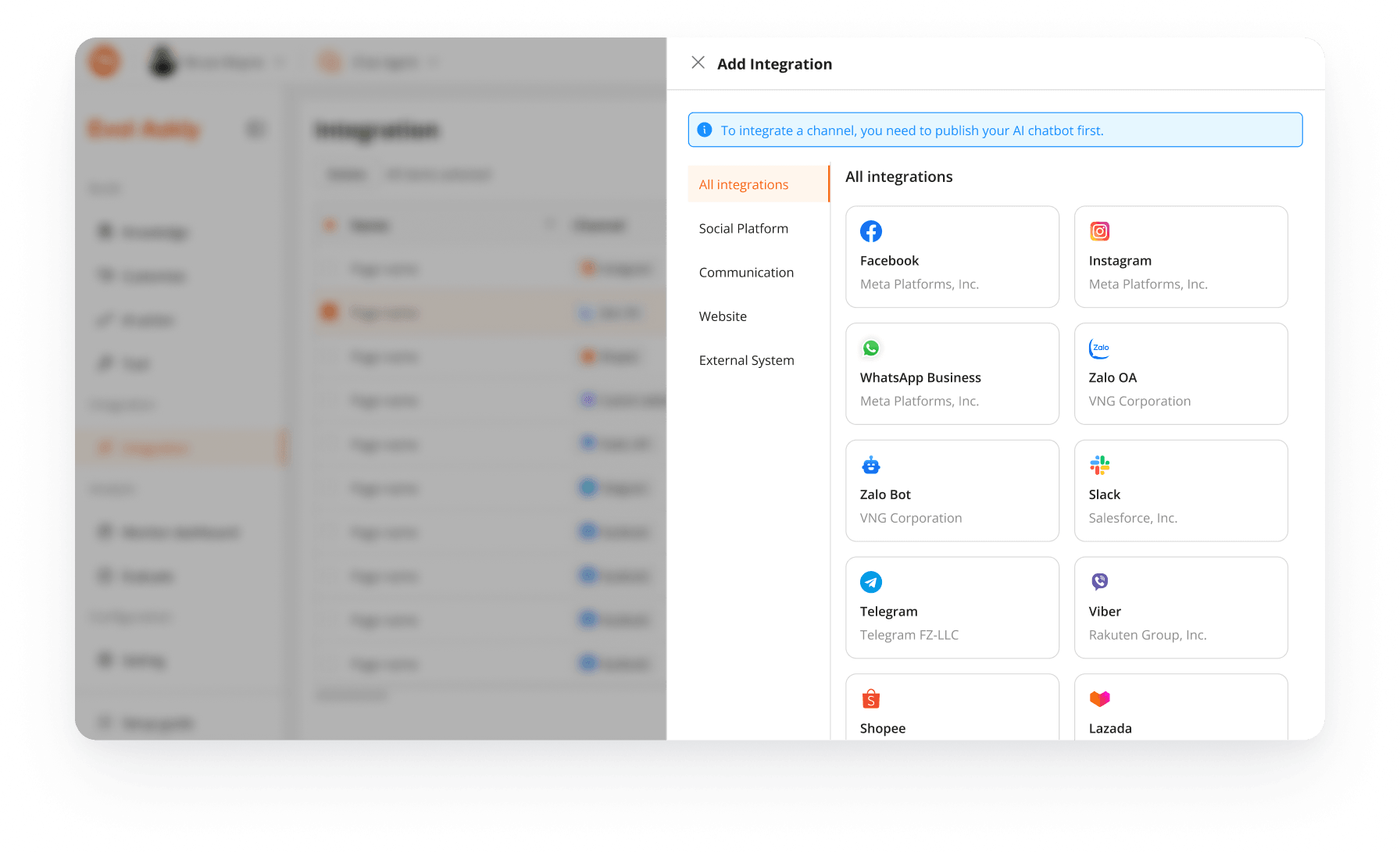
01. SELECT CHANNEL
Choose one of 18 supported platforms
Platforms are grouped into four categories — Social Platform, Communication, Website, and External System — so administrators can locate the right integration by business context instead of scanning a long flat list.
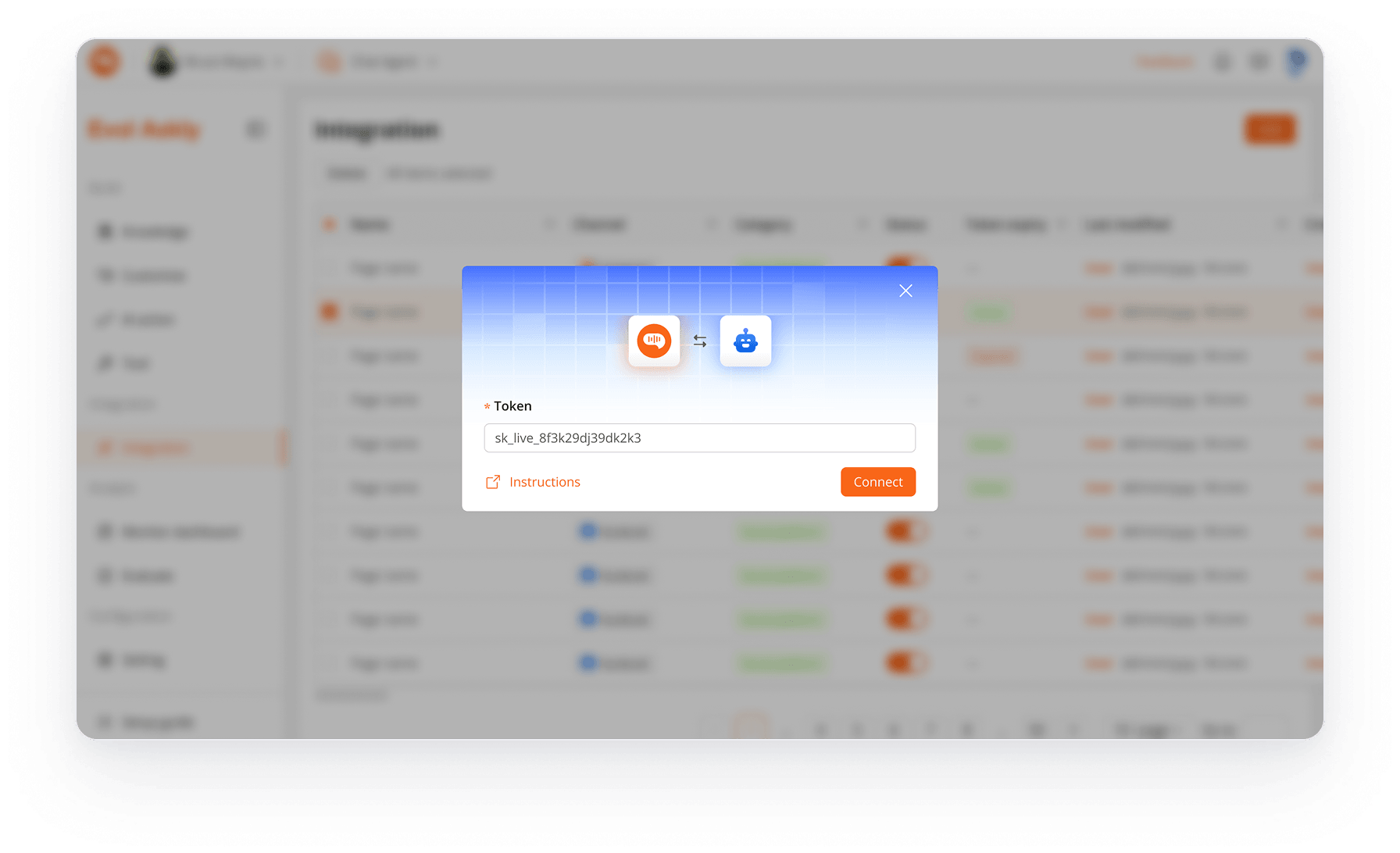
02. OAUTH AUTHORIZATION
Authorize the CRM through the platform's OAuth flow
The administrator signs into the target platform and grants the CRM the specific permissions it needs — no copy-pasting of raw tokens. When a platform uses a different authentication model, the same shell adapts to show only the fields required for that model.
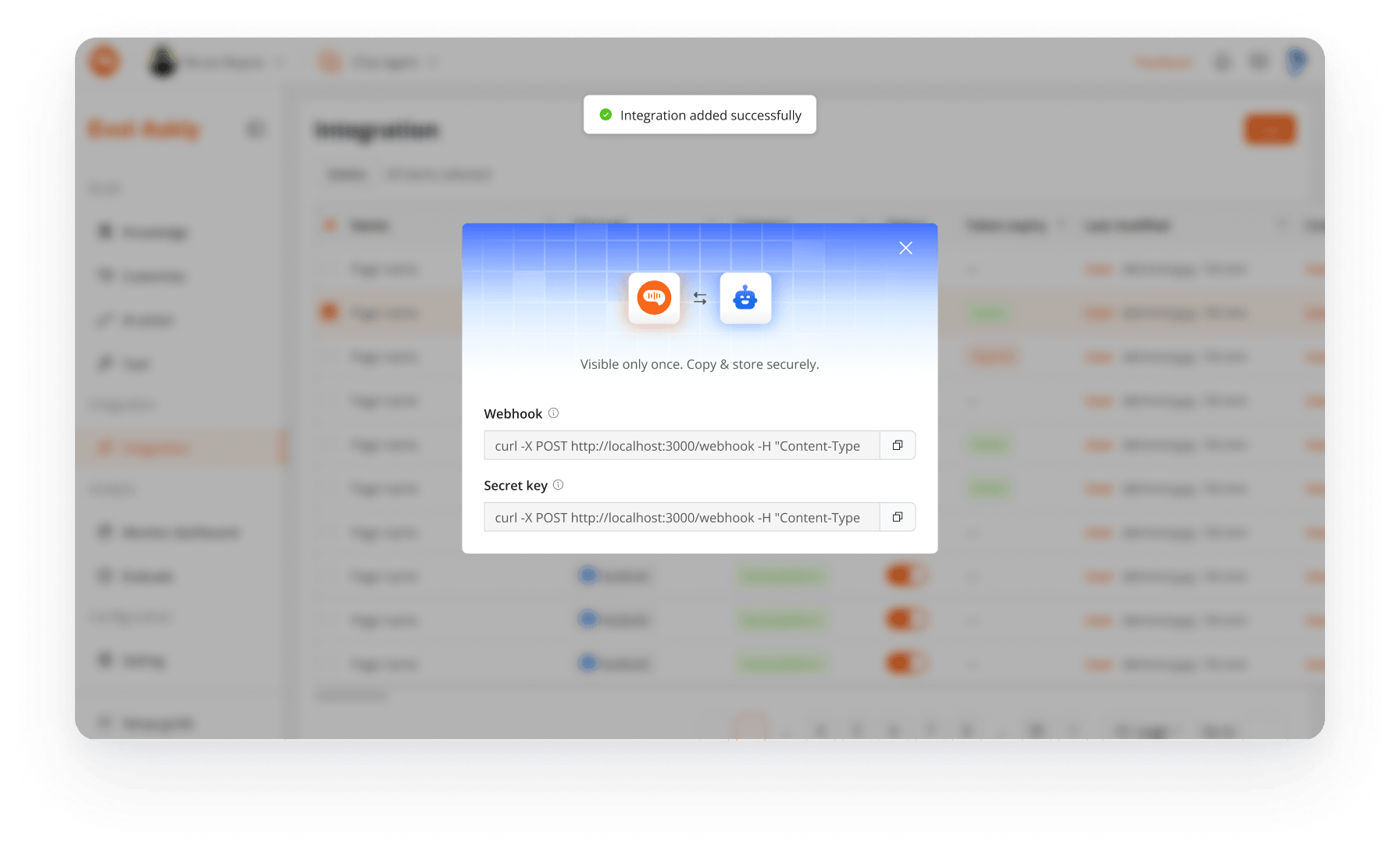
03. GENERATE CONNECTION INFO
CRM auto-generates the Webhook URL & Secret Key
After authorization, the CRM produces the connection information the third-party platform needs — a Webhook URL to receive real-time events (new messages, orders, business events) and a Secret Key to verify request authenticity. Both values are copy-ready for use inside the external platform.
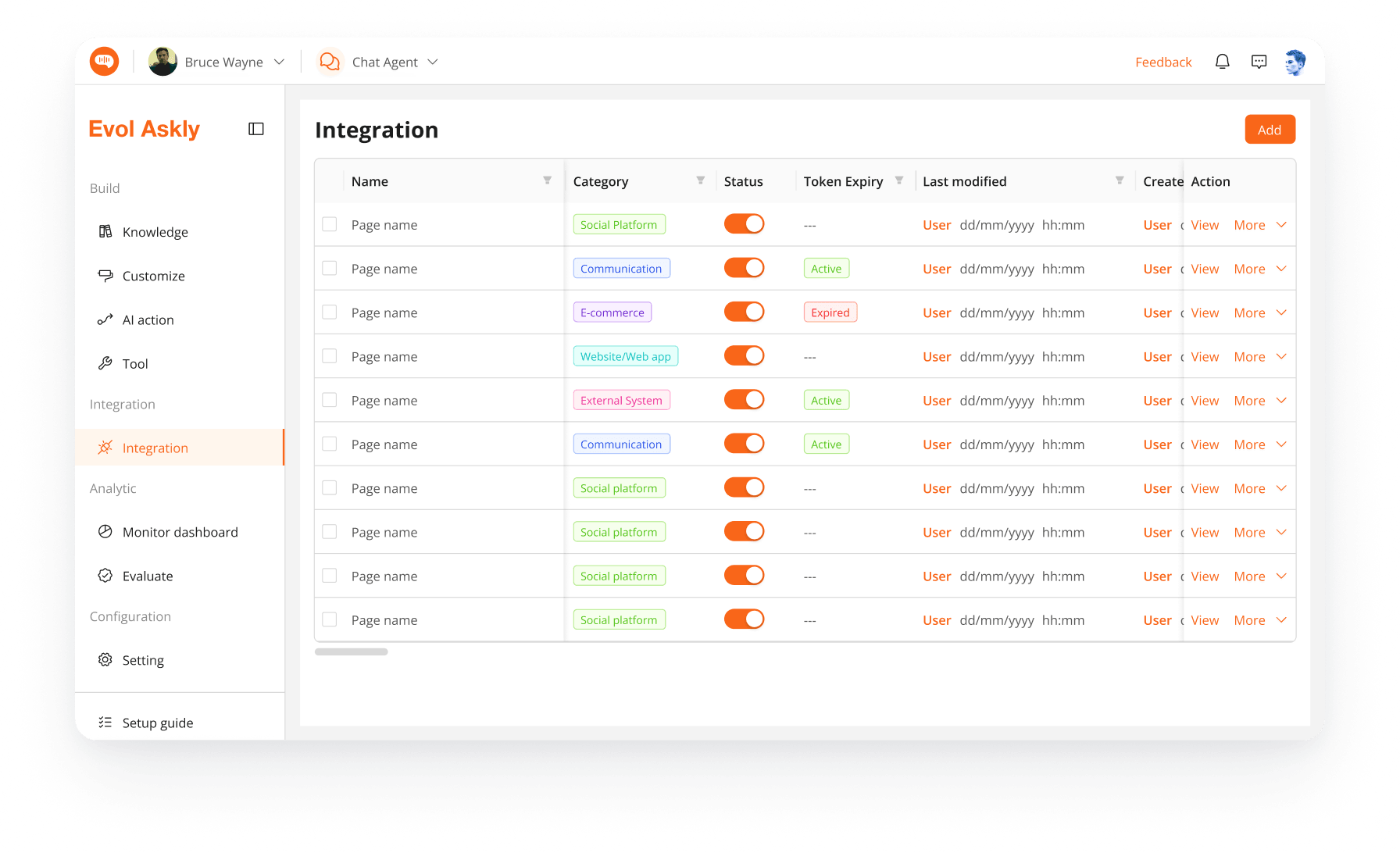
04. INTEGRATION LIVE
Managed from the integration list
Once activated, the integration appears in the management list with a connection-status badge. From there administrators can view status, edit configuration, reconnect, disable, or delete the integration at any time.
Connection & error states
Nine states that carry the integration's trust.
An integration UX fails if the admin can't tell whether the connection is working. I defined nine canonical states that any integration can be in — each with a clear label, a recommended next action, and a visual treatment that reads the same across all 18 platforms.
STATE
Not connected
Never set up. The next action is to start the guided flow.
STATE
Connecting
Setup in progress. Show step + estimated time; block edits.
STATE
Connected
Live and healthy. Show last successful event + one-tap manage.
STATE
Pending verification
Waiting for the platform to confirm. Explain what's expected + when to worry.
STATE
Missing permission
OAuth was granted but a scope is missing. One-tap re-authorize with the missing scope highlighted.
STATE
Expired token
Auth valid, but token needs refresh. Silent refresh where possible; otherwise a Reconnect Required nudge.
STATE
Failed connection
Explicit failure. Show the platform's reason + a specific recovery step, not a generic retry.
STATE
Reconnect required
Admin action needed. Preserve configuration; only re-auth is required.
STATE
Sync error
Auth works but data flow is broken. Point at what failed (webhook, field mapping, quota) with an actionable fix.
Design decisions
What I decided — and why.
Seven choices carried most of the weight. Each was resolved by asking the same question — what does a non-technical admin actually need in this moment?
DECISION
Guided flow instead of one long configuration form
WHY
A long form assumes the admin knows every field applies to their platform. A guided flow limits the admin to one decision at a time, hides irrelevant fields, and lets the design gate errors to the step that caused them instead of the final submit.
DECISION
One consistent flow across every platform
WHY
Different platforms need different fields, but every platform benefits from the same six-step spine (choose → auth → configure → map → test → confirm). Learning one integration teaches all 18, and the admin builds muscle memory instead of re-learning per platform.
DECISION
Platform-specific settings inside the same shell
WHY
The variance is real — some platforms need webhook URLs, some don't; some need field mapping, some don't. Rendering platform-specific fields inside the shared shell keeps the mental model steady while still respecting each platform's rules.
DECISION
Show permission requirements before authentication
WHY
OAuth prompts are opaque and jarring. Surfacing the scopes the CRM will request — with a plain-language explanation — before the platform's OAuth screen means the admin approves knowingly, and can escalate to their operations team before granting.
DECISION
Connection status visible after setup
WHY
The most common admin question is 'is this still working?' — surfacing state (Connected, Pending, Reconnect Required, Failed) on the integration list card is faster than opening the detail view. The list becomes the health dashboard.
DECISION
Test connection before final confirmation
WHY
Activating an integration that quietly doesn't work is worse than a slow setup. A test step at the end of configuration catches misconfigured webhooks, missing scopes, and unreachable endpoints while the admin still has the context to fix them.
DECISION
Plain-language error messages instead of raw API errors
WHY
'HTTP 401 Unauthorized' tells the admin nothing. 'Your Shopify token was revoked — reconnect to restore the integration' names the cause, the impact, and the fix. The API error is available in a diagnostic drawer for the support team.
Component thinking
A pattern library tuned for scaling to more platforms.
Because every integration composes from the same shell, the visual + interaction patterns had to be reusable, composable, and stable. Adding platform #19 should be a content change, not a design cycle.
Integration card
Platform logo + name + status badge + last-event timestamp. One card design carries every platform on the management list.
Platform selector
Category-first grid with logos, search, and filters. Adding a new platform is a config entry, not a layout change.
Stepper flow
Six-step spine with clear current-step, completed-step, and disabled-step states. Same stepper renders every platform.
Permission checklist
OAuth scopes listed with plain-language descriptions before the OAuth prompt. Missing scopes highlight after connection.
Status badge
Icon + color + label. One badge design carries all nine states; state name never renders alone.
Error message pattern
Cause + impact + fix, in that order. A diagnostic drawer surfaces the raw API error for support.
Connection summary
Post-setup card showing what's connected, what will sync, and where events will land. Reuses the same layout on the confirmation screen and the detail view.
Reconnect action
One-tap re-auth that preserves configuration. Renders on the card, in the detail view, and in the notification — same affordance, three surfaces.
Empty state — no integrations
Explains what integrations do + one primary CTA to start the guided flow. Doesn't hide behind a decorative illustration.
Validation & collaboration
How the design was validated — without formal user studies.
CRM admins sit behind customer NDAs and the setup happens infrequently — a formal usability study wasn't feasible. Validation happened through the review paths that were available: stakeholder walkthroughs, prototype critiques, and engineering feasibility reviews — each session focused on a specific lens the design had to survive.
Validation activities
- Stakeholder walkthroughs — running the full setup flow with product, business, and support teams end-to-end on a single platform
- Prototype reviews — testing the stepper + shell against three platforms with very different auth models
- Design critiques — reviewing status badges, error copy, and permission checklists with the product team
- Engineering feasibility review — checking which states the platform SDKs could reliably surface, which edge cases could happen in production
- Setup-flow review with internal users — walking the flow with an operations admin who would eventually use the module
- Error-message review with the technical team — translating API errors into cause + impact + fix language
Refined after feedback
- Simplified setup steps — dropped an intermediate configuration screen where the required fields were empty for most platforms
- Clearer permission explanation — added a scope checklist above the OAuth CTA after operations flagged that admins didn't know what they were about to authorize
- Improved error messages — replaced 'connection failed' with the specific cause + fix after the support team walked through their common tickets
- Stronger connection status visibility — moved the status badge from the detail view to the list card so admins see health at a glance
- Refined platform selection — added categories after the first prototype showed 18 platforms in one grid felt like scanning a directory
- Clearer confirmation screen — surfaced Webhook URL + Secret Key + connection summary together instead of on separate steps
COLLABORATION · WHO SHAPED THE DESIGN
Design decisions were aligned against three lenses at every checkpoint: business requirements with the Product Owner, Product Manager, and Business Analyst — which platforms mattered, how customers would use them; technical feasibility with engineering, QA, and the technical integration team — which states the SDKs could surface, which platform requirements couldn't be hidden, how each platform's edge cases actually behaved in production; and operational reality with Customer Support and Operations — what a real support ticket looks like, where admin confidence breaks down, which error paths are common enough to design for.
Reflection
What designing an enterprise integration module taught me about UX.
Good integration UX is not about exposing more technical options. It's about guiding non-technical administrators through complex setup steps in a way that feels predictable, recoverable, and trustworthy. The admin doesn't want to reason about OAuth flows, webhooks, or scope strings — they want to know the CRM is talking to Shopify, and that they can see when it stops.
The design work that mattered most on this project happened before any high-fidelity screen: mapping the roles, naming the constraints, drawing the six-step spine, defining the nine canonical states, deciding the vocabulary of error and recovery. When those foundations were honest, adding a new platform became a content decision — not a design cycle. When they were fuzzy, no amount of consistency in the shell covered it up.
TAKEAWAY 01 — GUIDE, DON'T EXPOSE
Enterprise integration UX is about hiding technical complexity while making configuration transparent and trustworthy — not about surfacing more options.
TAKEAWAY 02 — NAME EVERY STATE
In an integration product, admin confidence lives in the status field. Every state — Connected, Pending, Reconnect Required, Failed — needs a specific label and a specific next action.
TAKEAWAY 03 — ONE SPINE, MANY PLATFORMS
Consistency across platforms is what turns 18 integrations into one product. The shell teaches the admin once; the platform-specific fields fit inside it.